Set Up Okta Single Sign-On (SSO)
Prerequisites and requirements
- Permission to manage Single Sign-On App Insights. Learn more about permissions.
Overview
As a Workspace Admin and a Enterprise-level Randoli subscriber, you can set up Okta SSO to provide access for users within your organization, ensuring secure and streamlined authentication across Randoli App Insights.
Set Up Okta SSO
To set up Okta single sing-on:
-
Login to Randoli App Insights.
-
Navigate to the SINGLE SIGN ON page using the left navigation bar.
-
Click on the Configuration tab.
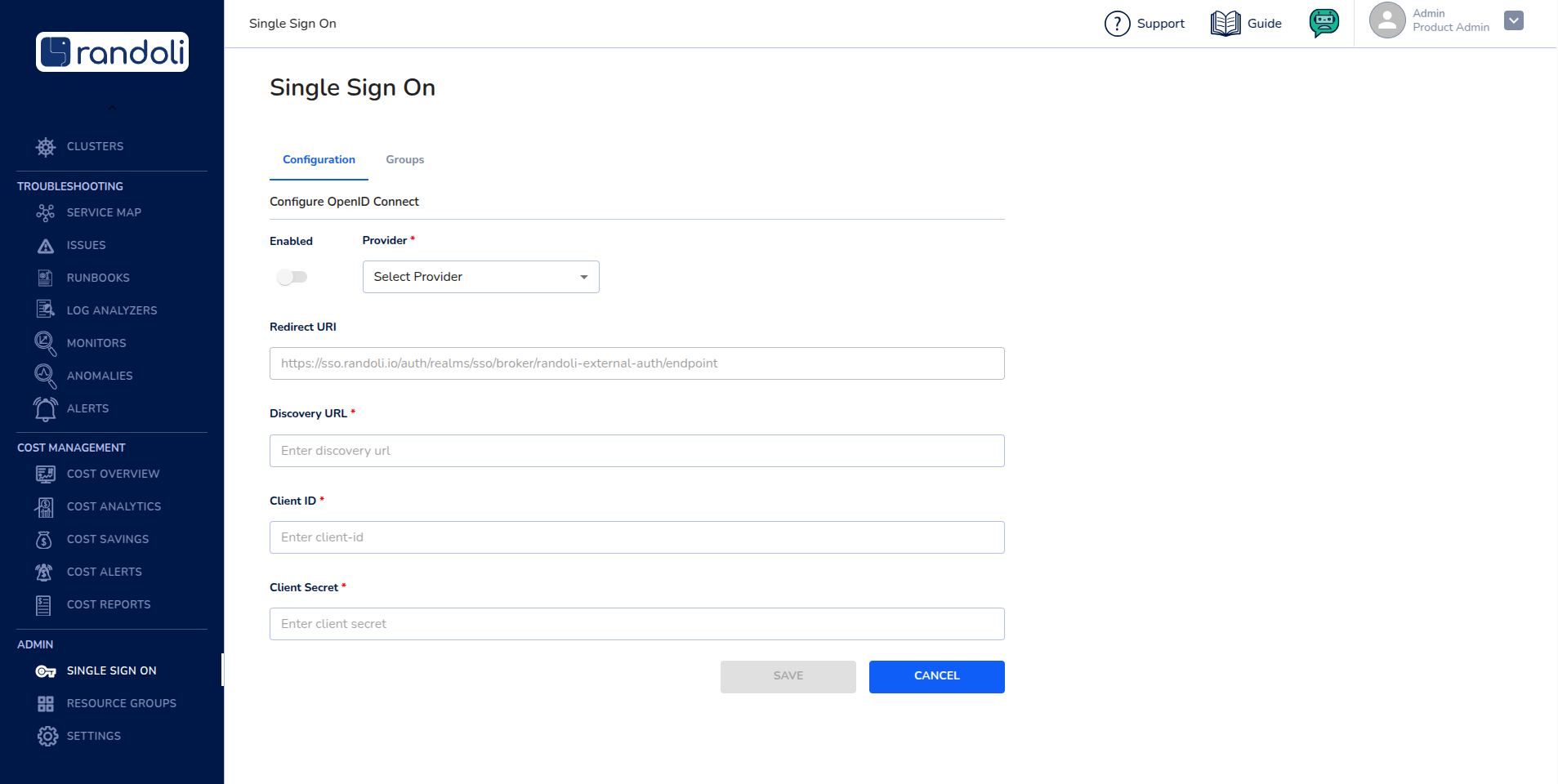
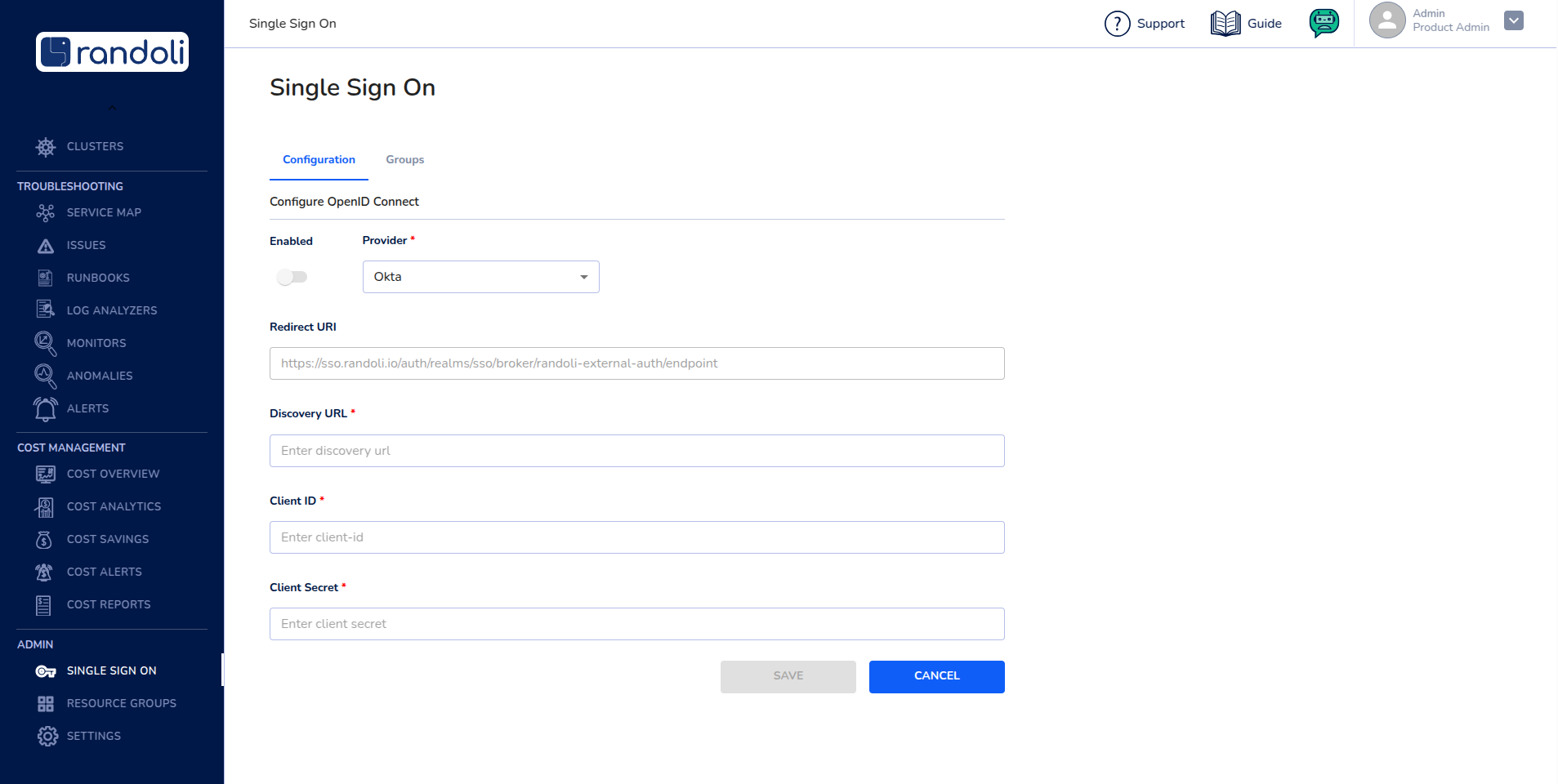
- In the Select Provider dropdown, choose Okta ID as the identity provider.
-
Complete the following fields with the relevant Okta configuration details:
-
Discovery URL: The Okta Discovery URL.
-
Client ID: The Client ID generated in the Okta Developer Console.
-
Client Secret: The Client Secret associated with the Okta application.
-
-
Click on the SAVE button to save the Okta SSO configuration.
-
Toggle the Enabled switch to enable Single Sign-On.